ShipsBells Help
Getting the clock ringing.
ShipsBells is designed to be simple. These notes explain the main screens and the few iPhone behaviors worth knowing.
Installing the beta
ShipsBells is currently distributed through Apple TestFlight. Use the ShipsBells install page for the two installation links and instructions.
Hear the bells without the clutter
ShipsBells uses notifications to play scheduled bells. For a clock that you can hear without a visible alert at every bell, we recommend this setup on your iPhone or iPad:
- Open Settings → Notifications → ShipsBells.
- Keep Allow Notifications and Sounds on.
- Under Alerts, deselect Lock Screen, Notification Center, and Banners to prevent visible alerts and a growing list of bell notifications.
- Turn Badges off if that option appears.
Leave Allow Notifications on even if you do not want visual alerts; turning it off also disables scheduled notification sounds. You can re-enable any visual alerts you prefer.
If ShipsBells is not listed, open the app and allow notifications when prompted, then return to Settings. If offered a delivery choice, choose Immediate Delivery and leave ShipsBells out of Scheduled Summary.
Silent mode and Focus settings can still silence bells. After setup, check that you hear the next scheduled bell; playing a test sound alone does not confirm your notification settings.
For more details, see Apple’s notification settings guide.
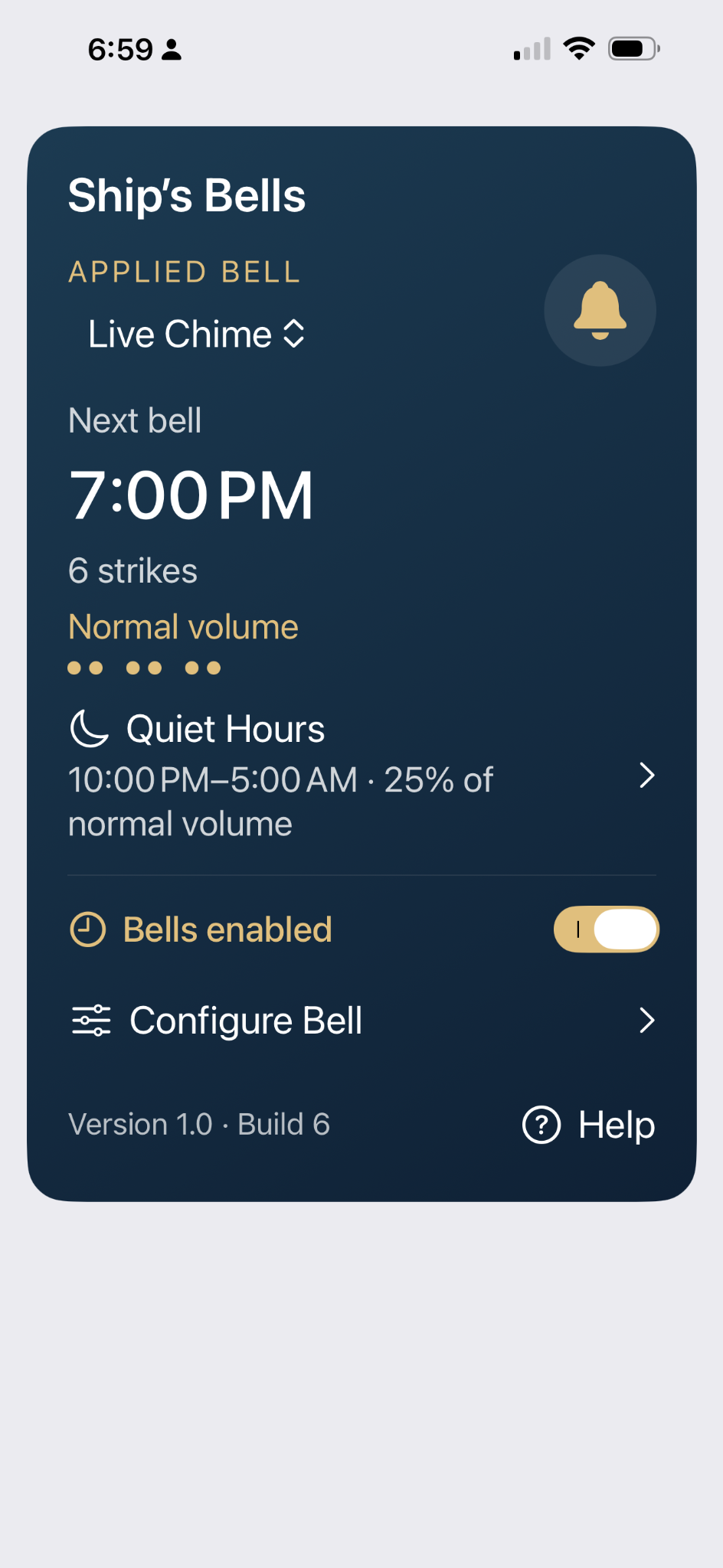
Main screen
The main screen shows the bell currently applied to the clock, the next scheduled bell, the number of strikes, and whether Quiet Hours is in effect.
Bells enabled turns the scheduled clock on or off. Configure Bell opens the bell editor.
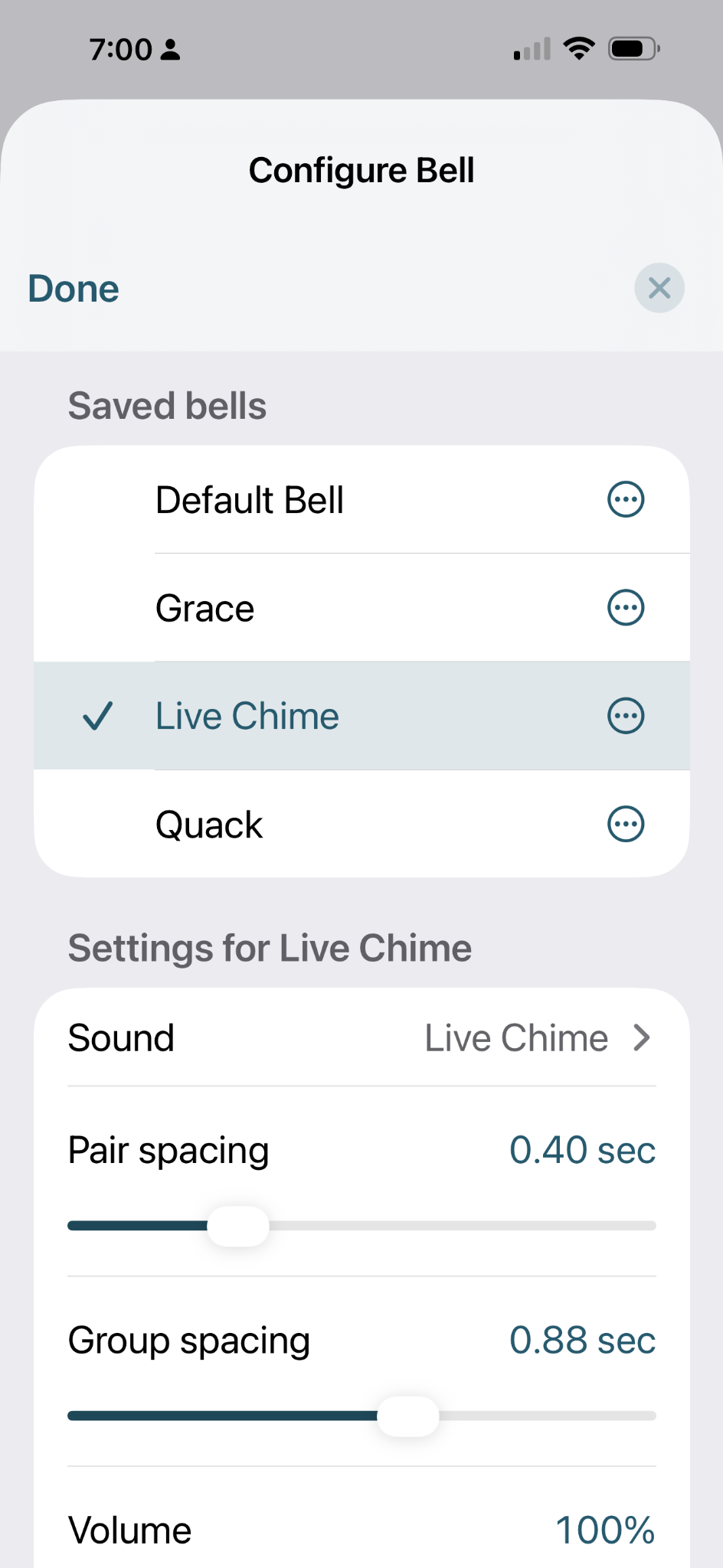
Configure Bell
Choose one of your saved bells, then adjust the sound, pair spacing, group spacing, and volume.
Pair spacing is the interval between two strikes in a pair. Group spacing is the longer pause between pairs.
Use the test controls in the editor to hear the result before applying it to the clock.
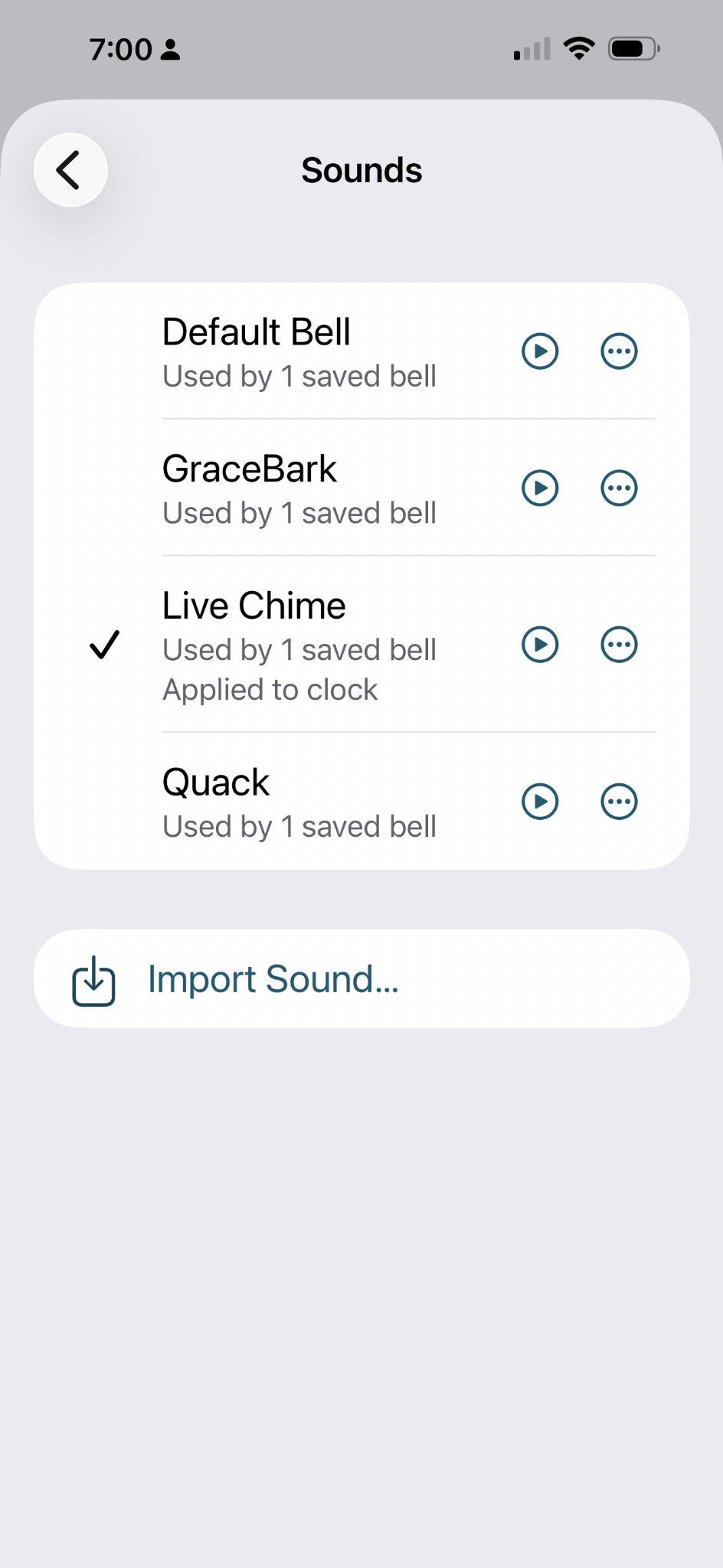
Sounds
The Sounds screen lists the audio available to ShipsBells. Tap the play button to preview a sound.
Import Sound… lets you choose an audio file from Files or iCloud Drive. Imported sounds stay on your device unless you explicitly share them.
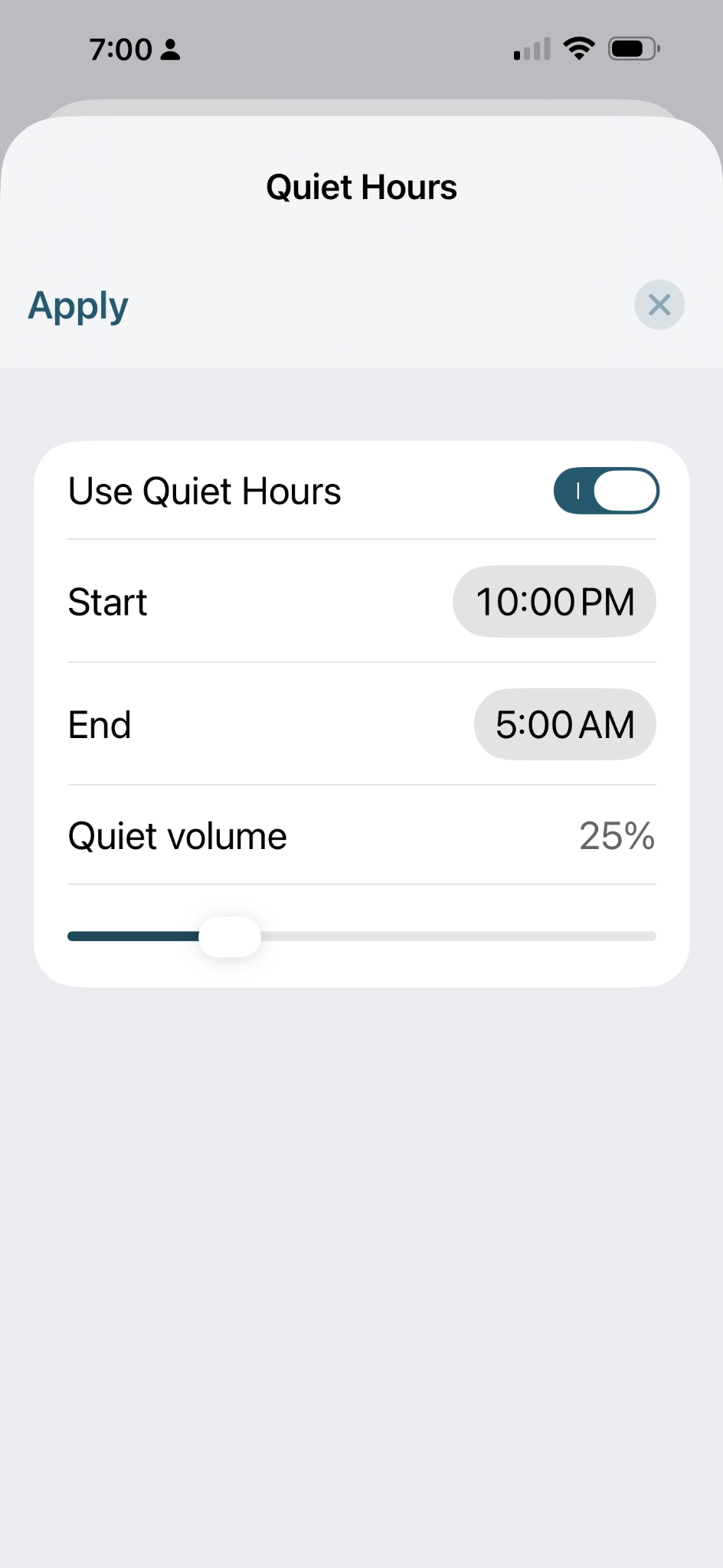
Quiet Hours
Turn on Quiet Hours, choose the start and end times, and select the volume you want during that period.
The bell schedule continues normally; only the playback volume is reduced.
Troubleshooting
Bell notifications are cluttering my screen
Use the recommended notification settings to turn off visual alerts while keeping notification sounds enabled.
Test bells work, but scheduled bells do not
Check that Bells enabled is on, that the desired bell is applied to the clock, and that Allow Notifications and Sounds are on for ShipsBells in iPhone Settings. Also check Silent mode and any active Focus. See Notification settings for the setup steps.
The bells are silent in my car
Bluetooth can change how iPhone notification audio is routed. If test sounds work but scheduled notifications are silent while connected to a vehicle, iOS or the vehicle’s audio system is usually controlling that behavior.
I changed settings but the clock still uses the old version
Edits are separate from the bell currently applied to the clock. Apply the bell after you have finished making changes.
Contact
For help with ShipsBells, bug reports, or problems installing or using the app, email support@shipsbells.app.
For general questions about ShipsBells, email info@shipsbells.app.